
Updating product inventory using Coreware workflows
You have the option to update product inventory in BFG using Coreware workflows rather than API calls.
Coreware workflow
A Coreware workflow is an automated series of actions in the Coreware platform, a business management and POS system commonly used by e-commerce businesses, retailers, and firearms dealers. A Coreware workflow is commonly used to automate tasks like order fulfillment, inventory management, customer alerts, and data syncing.
Instead of using BFG’s APIs, you can use a Coreware workflow to automatically update your product inventory after transactions like sales, restocking, or adjustments.
Prerequisites
Before you can proceed with using a Coreware workflow for BFG, you need the following:
- Coreware account
- Google Account
- Google Sheets file with two columns entitled
UPCandquantitycontaining your product inventory information.
Note: For details on creating a Coreware account, contact [email protected].
Setting up a Coreware workflow for product inventory updates in BFG
Adding a Google Sheets trigger
In a Coreware automation workflow, a Google Sheets trigger is an event in a connected Google Sheets document that initiates the automation. After the trigger condition is met, such as when a Google Sheets row is added or updated, Coreware runs the next actions defined in the workflow.
- Sign in to Coreware. The URL to Coreware depends on your user account. For example,
https://YOUR_COMPANY.coreware.app/login. - On the sidebar menu, select Company > Workflows.
- On the Workflows page, click Automations, and then click New automation.
- On the page of the automation you created, click Add a trigger: when this happens in the selected app.
- In the Set up a trigger window, select the following:
- Choose an app where your data will come from: Google Sheets
- Choose an event to trigger your automation: Track changes in the sheet/cell
- Connect your Google Sheets account:
- If you don't have a connection: Expand Select Google Sheets account connection, and then click Add a connection. Click the required buttons to grant access.
- If you already have a connection option: Select an option.
- Spreadsheet: Select your file.
- Spreadsheet sheet: Select the sheet containing the columns
UPCandquantity.
- Click Continue.
Configuring your Google Sheets file for the Google Sheets trigger
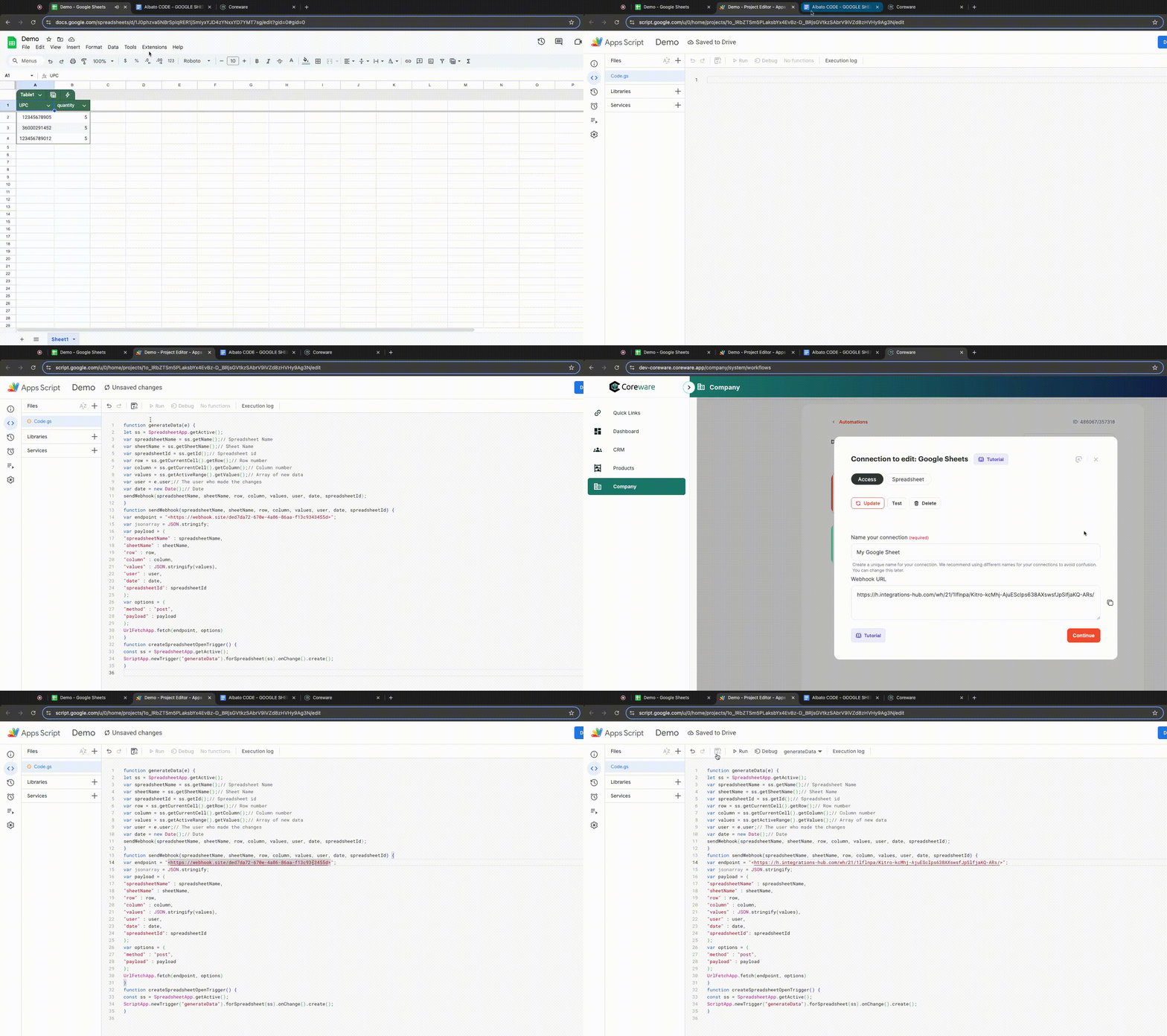
- Open your Google Sheets file containing your product inventory information.
- On the navigation bar, select Extensions > Apps Script. This directs you to a new tab for Apps Script.
- In the code editor of Code.gs, copy and paste the code from this Albato CODE - GOOGLE SHEETS file.
- Go back to the Coreware Automations page of the automation you created.
- In the Step 1 - Google Sheets: Track changes in the sheet/cell section, click the three-dot icon and select Connection settings.
- In the Connection to edit: Google Sheets window, copy the URL in Webhook URL.
- Go back to your Apps Script tab and in the code editor of Code.gs, replace the variable endpoint with the copied webhook URL from the Connection to edit: Google Sheets window.
- Save your changes.
For more information about this procedure, go to New Google Sheets trigger.
Adding a Google Sheets action
A Google Sheets action is a task that Coreware performs in Google Sheets as a result of a trigger. The Google Sheets action in these steps is used to find a specific row of data.
- On the Coreware Automations page of the automation you created, click Add an action: do this in the selected app.
- In the Add an action window, select the following:
- Choose an app to transfer data to: Google Sheets
- Choose an action you want to perform: Find a row by number
- Connect your Google Sheets account: Select an option.
- Spreadsheet: Select your file.
- Spreadsheet sheet: Select the sheet containing the columns
UPCandquantity.
- Click Continue.
- In the Google Sheets window, click the Row number field.
- Expand Google Sheets: Watch for cell change and send the row, and then select the
quantitycolumn. - Click Save.
Adding a BFG action
A BFG action is a task that Coreware performs in the BFG system after a trigger occurs. It’s an automated step used to send or update data in BFG based on events from other connected apps like Google Sheets. Adding this BFG action automatically changes the product stock in BFG when inventory is updated in your Google Sheets file.
- On the page of the automation you created, click the plus sign in the Step 2 - Google Sheets: Find a row by number section, and then select Action.
- In the Add an action window, select the following:
- Choose an app to transfer data to: BFG
- Choose an action you want to perform: Update Product Inventory
- In Connect your BFG account, click the field, and then click Add a connection.
- In the Create a connection to BFG window, specify the following:
- Name your connection: Your connection name
- Access token: Your API key
- Account ID: Your platform ID on the Company Profile page in BFG
- Click Continue.
- In the Add an action window, click Continue.
- In the BFG window, select the following:
- Request - Product UPC: Expand Google Sheets: Find a row by number, and then select the
UPCcolumn. - Request - Quantity Field: Expand Google Sheets: Find a row by number, and then select the
quantitycolumn.
- Request - Product UPC: Expand Google Sheets: Find a row by number, and then select the
- Click Save.
Running the Coreware workflow
On the Automations page, click Start in the area of the automation you created. The quantity of your products will now be automatically updated in the following pages in BFG:
- All Products
- Store Inventory
- Update Store Inventory
Updated about 1 year ago